Chatbot
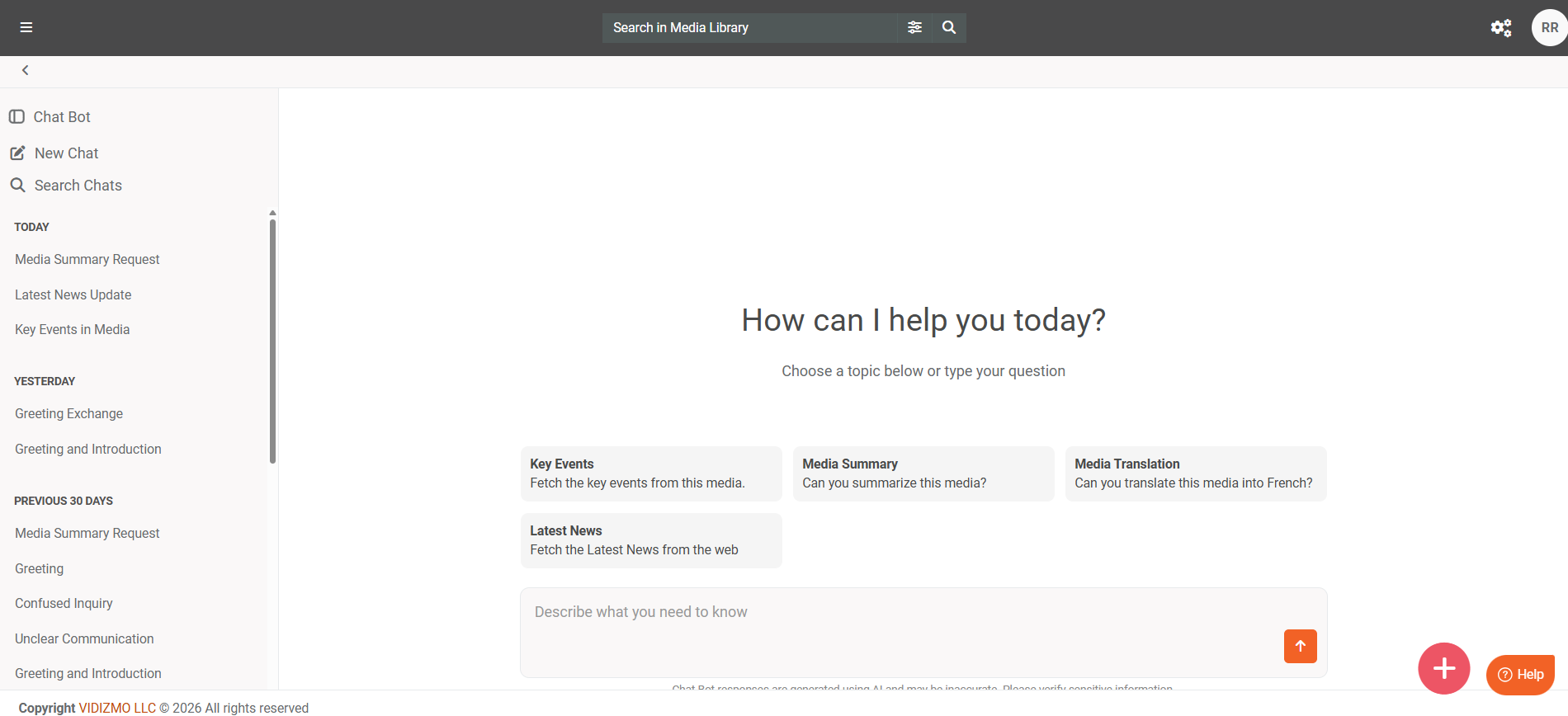
The chatbot is the conversational interface where users interact with AI-powered agents in VIDIZMO. It provides a messaging experience that allows users to ask questions, receive responses, and engage with organizational knowledge and automated workflows through natural language.
What Is The Chatbot
The chatbot serves as the front-end layer of VIDIZMO Agentic AI. While agents define behavior and workflows handle processing logic, the chatbot provides the visual interface where conversations happen.
Users interact with the chatbot by typing messages. The chatbot sends these messages to the configured agent, which processes them through its connected workflow and returns responses. This interaction happens in real time, with responses streaming as they are generated.
How the Chatbot Works
When a user sends a message through the chatbot interface, the following process occurs:
-
Message Submission: The user types a question or request in the chat input field and submits it.
-
Agent Routing: The chatbot forwards the message to the active agent. The agent applies its system prompts and determines how to process the request.
-
Workflow Execution: The agent passes the request to its connected workflow. The workflow executes nodes in sequence, retrieving data, processing information, and generating a response.
-
Response Streaming: As the workflow produces output, the chatbot displays the response progressively. Users see text appear in real time rather than waiting for the complete response.
-
Conversation Continuity: The chatbot maintains conversation history within a session, allowing follow-up questions and contextual interactions.
Chatbot and Sessions
Each conversation in the chatbot occurs within a session. Sessions group related messages together and maintain context across multiple exchanges.
Key session behaviors:
- Session Creation: A new session starts when a user begins a conversation
- Message History: All messages within a session are preserved and accessible
- Context Retention: The agent can reference earlier messages in the session to provide relevant responses
- Session Management: Users can start new sessions or return to previous conversations
Chatbot Capabilities
The chatbot interface supports several interaction patterns:
- Text Messaging: Send natural language questions and receive AI-generated responses
- Suggested Prompts: Select from predefined prompts configured in the agent to start conversations quickly
- Citations: View source references when the agent includes citations in responses
- Streaming Responses: Watch responses generate in real time as the workflow executes
- Approval Requests: Respond to human-in-the-loop approval prompts when workflows require user confirmation
Selecting Content in Chat
Users can attach content to a chat message to make queries more precise.
Attaching Content
To reference content in a message:
- Type
/in the chat input field followed by a search term (for example,/training video). - A dropdown list displays matching content items.
- Navigate the list using keyboard arrows or the mouse.
- Press Enter or click an item to select it.
- The selected content appears as a clickable link within the message.
Multiple items can be attached by repeating this process. Inline links are recognized by the chatbot and passed to workflows for processing.
How Content Selection Works
When a message includes selected content:
- The chatbot extracts content identifiers.
- Identifiers are sent to the connected agent as part of the query.
- Workflows can incorporate this context when processing the request.
- Search operations can be scoped to the selected content.
This enables queries such as:
"Summarize this document"
"Which topics are covered in these videos?"
where the referenced content is explicitly attached to the message.
Content Display in the Selector
The content selector helps users identify and choose items efficiently:
- Content title – Displays the name of the item.
- Parent folder or collection – Shows organizational context.
- Content type icon – Indicates video, document, or other type.
- Selection filter – Items already selected are removed from the list.
The selector supports infinite scrolling and real-time filtering as users type search terms.
Controlling AI Reasoning
VIDIZMO supports extended reasoning for certain AI models, allowing deeper analysis before generating responses. Users can enable or disable reasoning per message and cancel ongoing workflow operations when needed, giving fine-grained control over response depth, speed, and resource usage.
Enabling or Disabling Reasoning
- Enabled: AI performs multi-step reasoning to produce analytical and comprehensive answers.
- Disabled: AI uses standard processing, improving response speed and reducing computational cost.
Note: Reasoning applies to the current message. When reasoning is disabled by the user, this overrides any node-level reasoning configuration. When enabled by the user, the node-level configuration applies.
Canceling Ongoing Operations
Users can interrupt workflow execution at any time:
- Sending a cancel signal stops the workflow at its current step.
- Partial responses generated before cancellation remain visible.
- The system handles the interruption gracefully without data loss.
Cancellation is useful when:
- Responses take longer than expected.
- Queries need modification mid-process.
- Resource-intensive operations must be stopped.
When to Use Reasoning Control
-
Disable reasoning for:
- Simple queries that do not require multi-step analysis.
- High-volume interactions where speed is critical.
- Cost-sensitive scenarios with limited computational resources.
-
Enable reasoning for:
- Complex tasks that require multi-step logic.
- Analytical queries requiring thorough context understanding.
- Situations where accuracy and completeness are prioritized over speed.
Where the Chatbot Appears
The chatbot is available in multiple contexts depending on configuration:
Portal Chatbot
Within the VIDIZMO portal, users access the chatbot through the interface. The portal chatbot connects to the portal's configured agents, with the default agent active unless users select an alternative.
Embedded Chatbot
Organizations can embed the chatbot on external websites using an agent's embed code. The embedded chatbot provides the same functionality as the portal version while appearing within external applications. Branding settings configured in the agent apply to the embedded interface.
Chatbot and Agents
The chatbot displays content and behavior defined by the active agent. This includes:
- Welcome Message: The initial greeting shown when users open the chatbot
- Suggested Prompts: Quick-start options that appear before the first message
- Response Style: The tone and format defined by the agent's system prompts
- Fallback Messages: The response shown when the agent cannot process a request
- Visual Branding: Colors, fonts, and logos configured in the agent's branding settings
Switching agents changes these elements without modifying the underlying chatbot interface.
Summary
The chatbot is the conversational interface that connects users to VIDIZMO Agentic AI capabilities. It handles message input, displays streaming responses, and maintains conversation sessions. While agents define behavior and workflows process requests, the chatbot provides the user experience layer where all interactions occur.